Guide
This guide walks through Romp one feature at a time, at the level of what you see and do. The Reference documents the same features in full.
The Romp user interface
Romp gathers all your Claude Code sessions into one interface, with four complementary views of what the agents are doing:
- The chat is the regular interface for talking to a coding agent, with features that make a long session easier to scan.
- The feed is Romp's task-management layer: what is in progress, what needs your input, and what is done.
- The Sessions pane holds the timeline: what each session worked on and how they coordinated; click any part to jump to that moment in the chat.
- The outline lists every session with its tasks, for reviewing what a session has done and searching across all of them.
Two more panes, Files and Artifacts, are off by default.
The chat
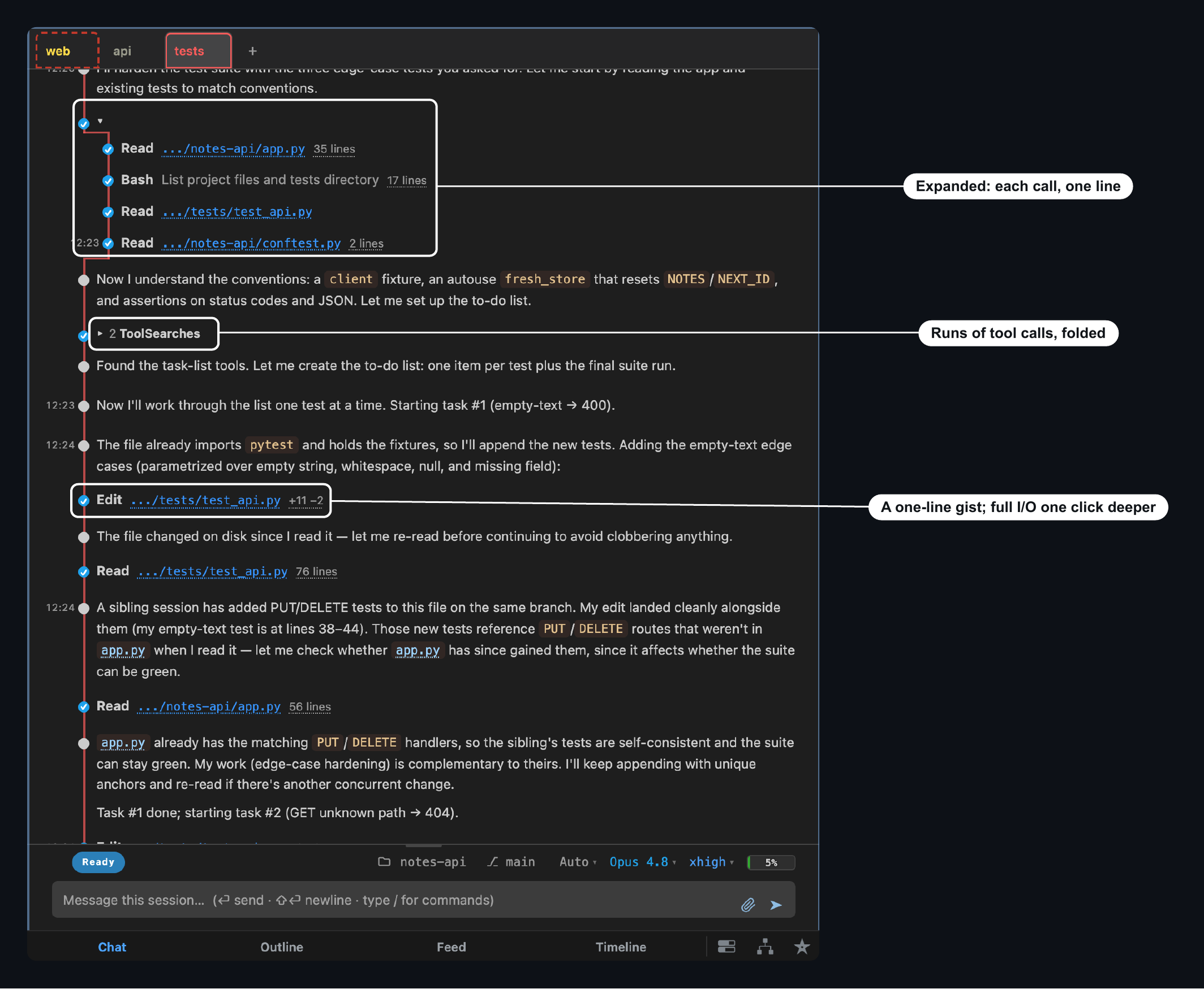
Tool calls fold into runs, and each run opens to one line per call.
The message box also supports attachments, session names and recall. A file
dropped anywhere on the pane attaches to the next message, @ and the first
letters of a session's name list the live sessions that match, and picking one
inserts it. The pencil on a message the session has not taken yet puts it back
in the box.
A path or a markdown link in the chat opens the file in the viewer, rendered. A passage selected there lands in the composer as a quote, labelled with the file and the line it came from.
Select a passage in the chat itself and comment on it, and a side conversation opens on the highlight; a reload brings you back to where you were reading with that thread still open, back where you had moved its box, though anything you typed and did not send is gone.
Tabs carry the state of their sessions. A tab shows a count dot while its session needs you and a red ring while it is stopped, tags group the strip into sections, and a tab can take a hot key of your own.
Drag a tab onto a tag group to put that session in it: the tab takes the group's tag and lands where you dropped it, keeping its other tags, so a session with several tags shows under each one.
Drag a tab onto the ungrouped row instead and it loses every tag it had — that row is the sessions with no tags — so the label under the tab names them all before you let go. Dragging one back into a group restores that tag, not the rest. Dragging a group's header still reorders the groups.
What a session needs from you sits in a box above its composer, folded to a header with the count. Click the header to see the items, again for the full context under each. A question offers Reply and Clear, a held message its own buttons. A stop the chat shows inline is not listed; the tab says it.
Drag a tab to the right edge and the chat splits into columns, each a full chat with its own tab strip and composer, four at most.
The feed
The feed is Romp's task-management layer: a card for each task. Romp's judges watch each session's work, split it into those tasks, and keep every card current.
Cards sit in three columns:
- Working: the session is actively working on the task.
- Needs you: it needs your input to move on.
- Completed: done, ready for you to review and clear.
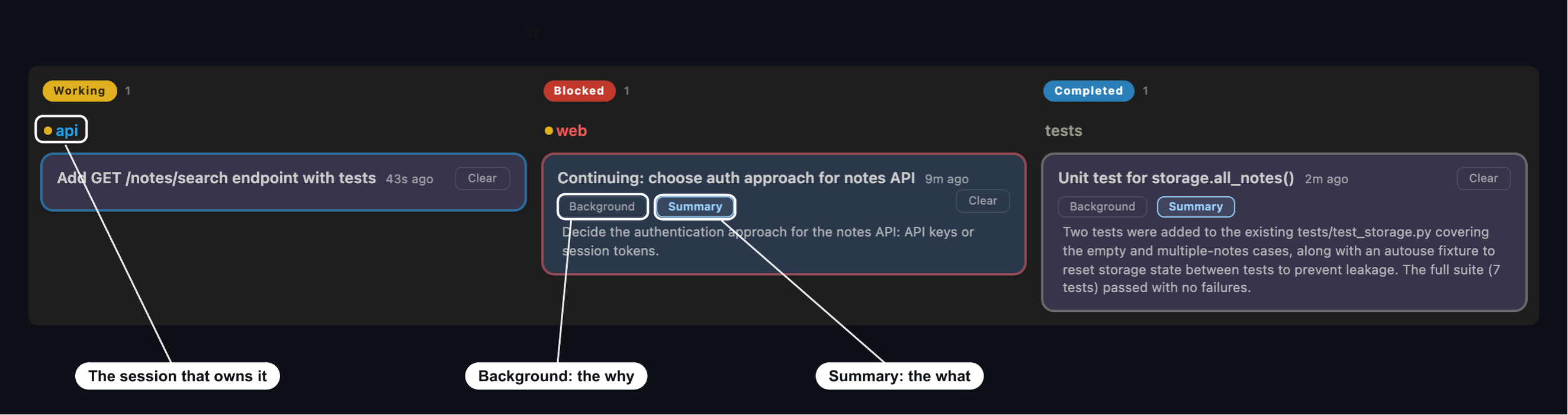
Background is why the agent is taking the action, and Summary is what it did. When a task divides naturally into parts, the card's Sub-goals button opens them.
Cards follow the work rather than the session: one session can hold several tasks, and a task can be handed from one session to another.
Press Clear on a card when you are done with it. A cleared card is archived, and no more work is added to it.
romp card posts a card from a script or an agent, with a title, a body and a
picture if you want one; a card that names no session sits at the top of the
feed under Notes.
romp board define adds a board beside the feed: its categories, how its cards
sort, and which category rings the bell. The feed's View button then offers
a row per board.
View also holds the feed's own layout: the sort direction, a single column, cards grouped by session, and a section at the top for the session you are reading in the chat.
Task tracking has a master switch, at the top of its own settings tab and on by default. Off, the judges do not run and cost nothing, the feed and the outline go away, and Romp is a chat tool.
The Sessions pane
The Sessions pane holds the timeline, one row per session. A bar is a stretch where the session was working, and a circle is a message you sent. A striped stretch means the session had stopped and needed you.
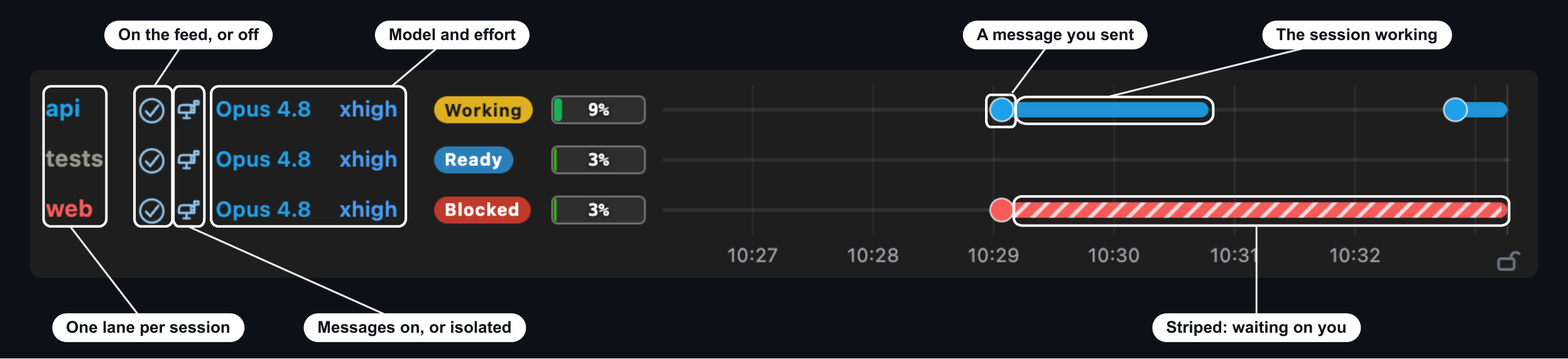
Click a bar or a message marker to jump straight to where it happened in the chat.
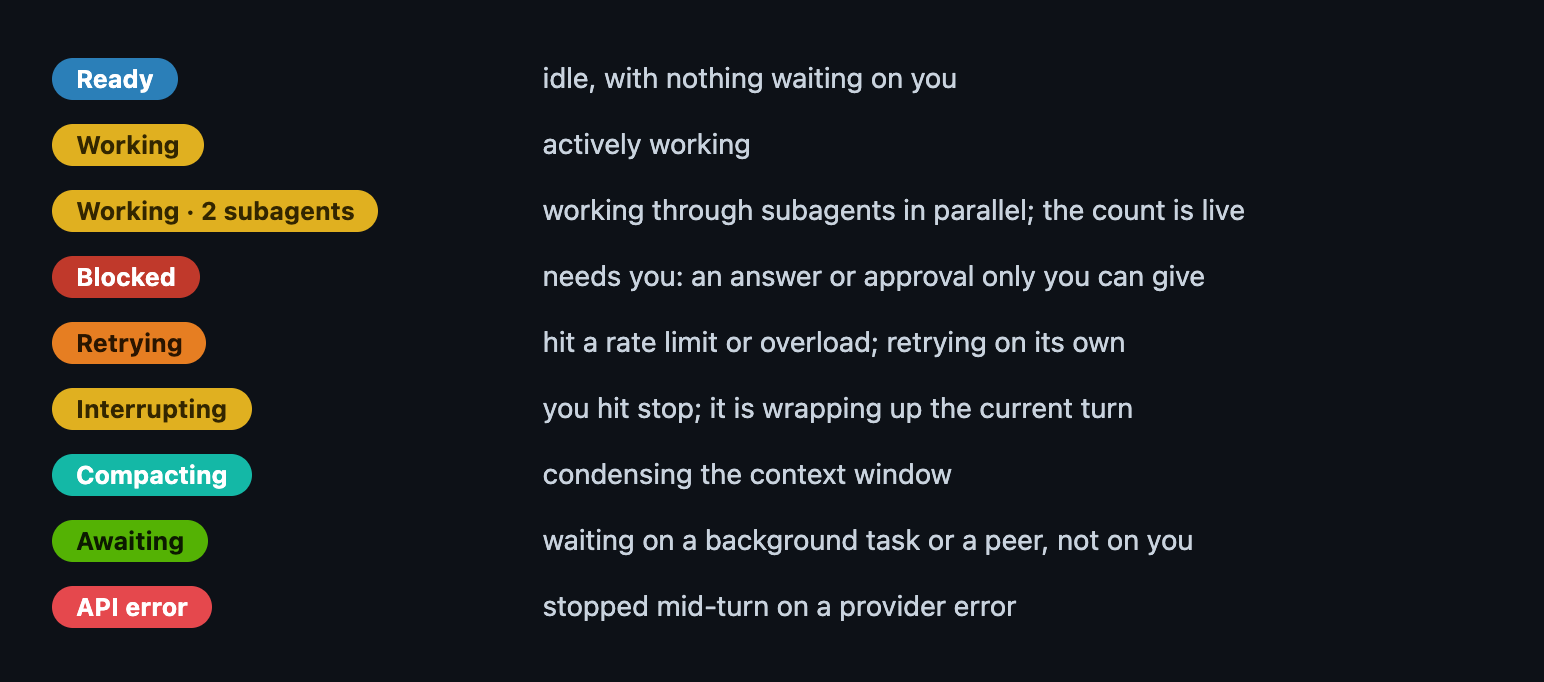
Session statuses:
The outline
Every session with its task tree: open work stays up top, finished work folds beneath. Open the outline to review what a session has worked through, or to find past work: the search box reaches every session, live or closed.
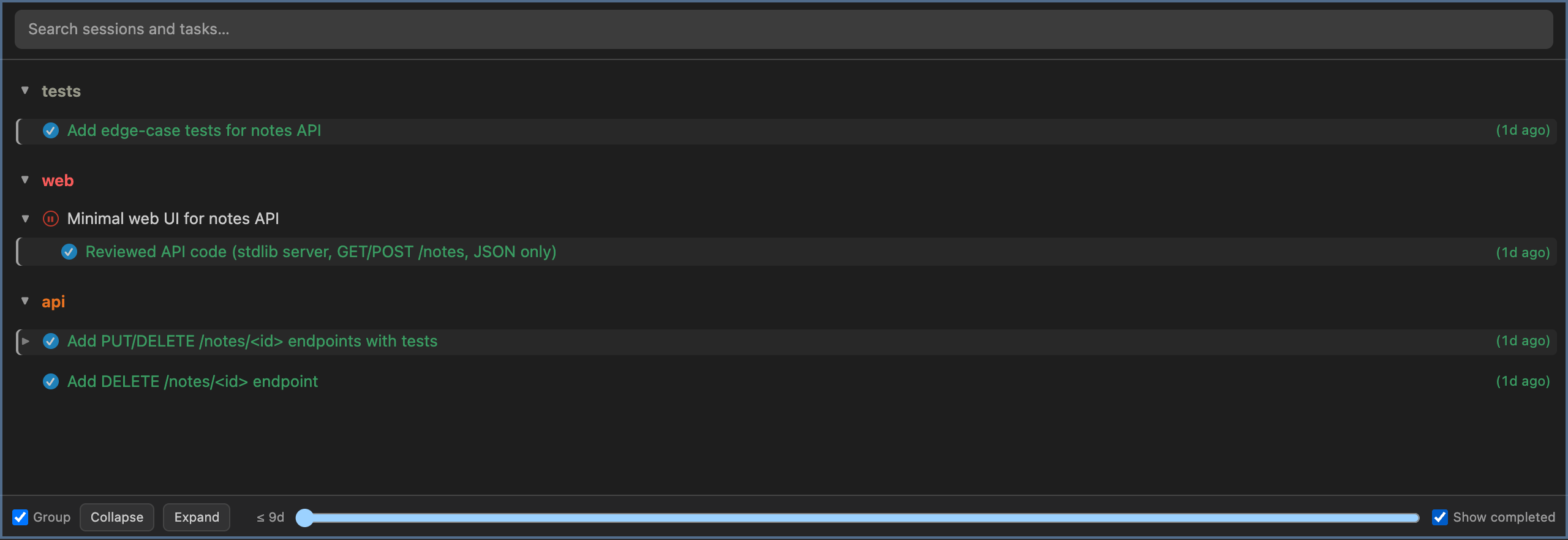
Right-click a session's name here to rename or end it. A rename changes the label only: the session's mail, goals and history follow the session itself.
The other panes
Two panes sit beside these, off until you switch them on in Settings, General, Panes:
- Files keeps the file viewer in a column of its own, so an open file covers neither the chat nor the feed.
- Artifacts, which is experimental, lists the files a session wrote, showed or was handed, its pictures as thumbnails.
Pane docking, in the same settings section and also off by default, arranges the panes by dragging: grab a pane by its empty space, drop it on another pane's half, and drag the dividers between them. A session tab dropped that way becomes a chat pane of its own.
Automatic nudges
Agents stall: they hit an API error, they get interrupted, or they end a turn leaving it ambiguous whether a task is done. Romp nudges a stalled session with an injected message, so every task ends up either explicitly done or explicitly needing your input.
Romp asks the agent, item by item, where each open piece stands: continue what it can, and say what blocks the rest.
- If the agent can keep going, it does, and you were never interrupted.
- If something needs you, the card flips to Needs you and names exactly what it needs.
Nudging engages only when you are not actively messaging the session, so it never talks over you and never loops on its own messages.
A session can also be waiting on something unrelated to you: it dispatches work into the background, then pauses for the result. In that case it shows an Awaiting chip. The chip clears on the session's next turn, when the task finishes or blocks, when you clear the card, or as soon as you reply.
Inter-agent communication (the Romp Postal Service)
Sessions message each other through a mailbox Romp gives them, and every exchange is visible to you. Each session gets mail tools: send a message to a session by name, check the inbox, and see who is live.
Each session also publishes a working note saying what it currently holds, so agents can see who to talk to instead of messaging each other to find out.
The timeline draws an arc for each message. Hover one for its gist:
Underneath, a local message bus writes the message into a mailbox on disk that belongs to the recipient, then delivers it: straight away if that session is idle, otherwise when its current turn ends.
The recipient reads it as an ordinary message in its chat, and it appears in the interface as a card naming both ends. A message you sent carries a delivery mark, the way a messaging app does: sent, delivered, read, parked, bounced or recalled.
Every message declares its kind, which the card shows as colored text:
- Delegation: the recipient owns the work now.
- Coordination: a heads-up; a reply is optional.
- Question: an answer is required.
The same mailbox is on the command line, for you and for scripts:
romp mail send --kind question api "Which auth approach did we settle on?"   # send, to the session named "api"
romp mail inbox                                                              # read this session's messages, and clear them
Names resolve against the currently live sessions; sending to a dead session's name errors instead of silently parking mail.
Sessions, revival, and search
A session outlives the conversations inside it. /clear starts the agent on a
blank slate, a relaunch starts it over, the kernel restarts: each of those is a
new conversation underneath, and api is still the same api on your board,
with its history and its cards.
Closed sessions come back. Click + and the closed ones are listed under Recent; pick one and Romp offers to revive it, with its history intact, or to open it read-only. Revival works by picking the session, not by its name, so a new session that reuses an old name is a new session rather than the old one resumed.
A session can move to another folder, for when the code it works on moves.
Right-click its tab and choose Move to folder…, or run romp move <session>
<dir>: its conversation, name, mail and history stay with it, and the agent
reads the new folder's CLAUDE.md from the next turn.
A session can also be restarted in place. Right-click its tab — or its row in the Sessions panel — and choose Restart session: the agent's own program ends and a fresh one picks the same conversation up, so the session keeps its name, its place, its tags, its model and its whole history.
That is how a long-running session gets onto a newly installed Claude Code. A session keeps the version it launched with, so when a new model ships, only a session running the new version can reach it. If the session is working when you ask, Romp says what the restart interrupts first; if it is idle, it just happens.
Words your team coined wear a quiet dotted underline wherever a session writes them: hover one for the definition, click it to open the group's glossary at that entry.
Search reaches inside sessions, not just across their names. As sessions run, a lightweight index judge writes each one a headline and an abstract of what it did, so searching for the work finds the session that did it, months later.
Session backends
Sessions run on one of two backends, chosen per session:
- Claude Code (the default). The kernel runs the Claude Code session itself, through the Claude Agent SDK.
- Codex. An OpenAI Codex agent, which needs its own one-time setup on each machine.
The backends interleave freely, so Codex sessions and Claude Code sessions sit side by side in the interface and message each other like any other pair.
The Romp kernel (the back end)
The kernel is the program that runs your agents, watches their work, and serves
the user interface at 127.0.0.1:29855. You run it on your own machine, with no
hosted service in between. Everything Romp stores stays local; the only traffic
that leaves your machine is claude itself, both the agents' own model calls and
the LLM calls in Romp's judge pipeline.
It runs as a login service, so it is up whenever you are logged in. romp down
stops it, giving turns in flight a few seconds to finish first, and romp up
brings every session back with its history.
Linking kernels on other machines
Romp kernels can connect and communicate across multiple machines, e.g. a laptop and a server. This lets you control them all from one user interface, and lets their agents communicate across the machines.
A linked machine's sessions appear as server:api tabs and timeline lanes beside your local ones, its cards share the feed, and its sessions message yours, so an agent on your desktop can hand work to one on the server.
You link machines from the network popover, which opens from the button at the bottom right beside the settings gear:
Every machine gets a row there with two controls. Attach brings that machine into your interface: its sessions, its cards, and mail both ways over the one connection. Share my sessions there puts your sessions in its interface, for when you also work from that machine.
Attach a Romp kernel on another machine
Attach any machine you can ssh to, such as a server or a desktop that stays
on. Your kernel opens the connection.
- Install Romp on that machine, the same way you installed it on your own (see Install).
- Check that
ssh <host>connects without prompting you for anything. Romp opens the connection in the background, so a password or passphrase prompt stops it; set up key-based login if you need to. Any target you could type aftersshworks, including a~/.ssh/configalias. - Attach it from your interface. Open the network popover, click + Add a host, type the ssh target, and click Attach.
The machine appears as a row with a live status, and Romp reads its kernel's access token over ssh so your browser can authorize against it.
A row reading kernel not answering means no Romp kernel is running there: click Start, which brings that machine's Romp up to date with this one's and boots it. Romp never starts a remote kernel by itself, since a stopped one may be stopped on purpose.
Detaching keeps the machine under Previously attached, so re-linking later is one click, and the machine comes back with the trust level you last gave it.
Mail across linked machines
Each linked machine carries a trust level, set on its row, that decides what happens to mail arriving from it:
- trusted: delivered straight to your sessions.
- directed, the default: held for your approval as a needs-you card.
- isolated: no mail either way; its sessions still appear in your interface.
Machines that a linked machine can reach appear to you too, under Reachable via relay: no tunnel of your own, their mail arriving one hop through the machine in between. They carry the same trust selector as any host, because a message is judged by where it came from rather than by the route it took.
When another machine is holding mail for approval, Held for approval elsewhere shows you that it is, and how much, with the gist on hover. Acting on a held message stays on the machine holding it, so this tells you where to go rather than deciding for you.
Mail for a machine that is offline waits in an outbox and delivers when it comes back. If it returns and the session you addressed is gone, that refusal comes back to you. Every machine runs its own postal bus, so a laptop with no connection at all still has full local messaging; linking only adds reach.
Work from the far machine too
Attaching leaves the far machine's interface unaware of your sessions. Do this only if you work from both computers, since mail already crosses both ways without it.
If that machine can ssh to yours, it can just attach you and you are done. A
laptop usually cannot be reached that way: it moves between networks and sits
behind a router that accepts no incoming connections. Work from the laptop
instead:
- Attach the always-on machine you want your sessions to appear on, following the steps above.
- Tick "Share my sessions there" on that machine's row.
Your sessions now show up in its interface from whatever network you are on.
Because the laptop is the end that connects, the always-on machine never holds a
way in to it; untick the box and it forgets you. Romp calls this checking in,
and the always-on machine the hub, which is where romp checkin and
romp checkout get their names.
Restarting Romp from the hub's interface restarts the machines linked to it as well. A machine that checked in is asked to restart itself only, so anything attached to that machine alone is restarted from its own interface.
Hand the connection to a different machine
The add-host box has a from picker. Leave it on this machine and the tunnel lives here, dropping when this kernel stops. Choose an attached host instead and the attach is forwarded to that kernel, which dials out itself, so the connection outlives your laptop. That machine needs its own ssh access to the target.
Settings across machines
How a page looks is kept in the browser you are using. What the kernel acts on, Auto Nudge or Task tracking for instance, is sent to every machine you are connected to.
The order you drag your tabs into is kept by your kernel rather than by one browser, so it follows you: arrange the strip on the desktop and your phone lists them the same way, with no reload. The last drag wins, and a phone shows the arrangement but cannot change it.
Folded tag groups are kept the same way: a group folded on one device is folded on the others, and a tap on a group's heading in the phone's session list folds or opens it.
A few settings describe one machine and stay on it. Extra models from your
API gateway, under General, This machine, offers the models that machine's
own gateway serves in every model picker, once ROMP_ROUTER_MODELS in its
service.env names them.
A machine that was set differently while you were apart asks rather than changes: a line under the row, and a card on the feed, each offering Apply or Keep mine. A picker above the settings tabs says which machine you are setting, and pins a value there when you pick one.
Remote access
You reach Romp in a browser tab, in the VS Code / Cursor extension, or from your phone.
From another machine
The kernel listens only on 127.0.0.1, so a browser on another machine needs a
path to that port. Forward it over ssh, from the machine with the browser:
Then open http://127.0.0.1:29855 as usual. Tailscale, set up as for a phone
below, is the other path. VS Code's port forwarder is a poor one for the
dashboard: it carries every socket over the one channel it shares with your
editor, and does not close the far end when a pane goes away.
From your phone
The user interface is a web page, so your phone can run it against a kernel on
another machine. The obstacle is reaching that machine: the kernel listens only
on 127.0.0.1, which your phone is not on.
Tailscale closes that gap, and is free for personal use. It puts your own devices on a private encrypted network, so your phone can reach your laptop directly whatever network either one is on. Install it on both devices, sign in to the same account on each, and turn on HTTPS Certificates in its admin console.
Then, on the machine running Romp, one command opens it to your other devices:
On the phone, open https://<machine>.<tailnet>.ts.net/. Romp answers with a
page asking for your access token: paste in the one romp prints, and a
year-long cookie remembers the phone afterwards. Only devices signed in to your
Tailscale account can reach it, and nothing is exposed to your local network or
to the internet.
If you change the kernel's port later, re-run that command. The proxy remembers the port you gave it, so a stale mapping leaves the phone on a dead page while the machine itself looks healthy.
Three settings in the Tailscale app on that machine decide whether it can serve at all: allow incoming connections, use Tailscale DNS settings, and launch Tailscale at login.
On a tailnet you share with other people, tailscale serve exposes Romp to
every device on it, with the access token the only thing in front of your
agents. Keep the tailnet to your own devices, or write an ACL that restricts the
kernel's machine to them.
Notifications on your phone
Romp can buzz your phone when a session needs you or finishes a task. Tap the bell, in the bar along the bottom on a phone and at the bottom right on a desktop, then turn on Notifications and This device and send yourself a test.
On an iPhone, add Romp to the Home Screen first (share sheet, then Add to Home Screen) and open it from there: iOS only lets an installed app receive notifications. Tapping a notification brings Romp forward on the session it was about.
Security and trust
Romp drives agents that run tools and shell commands as you, so reaching its API is equivalent to running code as you. Everything below follows from that.
One token, required on every request. The kernel and the postal bus both demand a token on every request, local ones included. Loopback is not a security boundary: on a multi-user machine every local account can reach your ports, so without this any other user could inject prompts into your live sessions.
The token is 144-bit random and lives at ~/.local/state/romp/serve-token with
mode 0600 (readable only by your own user account). Local tools (the CLI,
hooks, the bus, the editor extension) read that file and send it automatically,
so you never type it. Only liveness probes and the few files a browser fetches
to install Romp on a Home Screen are exempt.
A browser cannot read that file, which is why the link romp prints carries the
token in it. The first visit trades it for a year-long cookie, so the bare
http://127.0.0.1:29855/ works from then on; romp url prints the link again
for a new browser or after clearing cookies. The cookie is a credential in its
own right, so treat a machine holding one as signed in.
Remote machines. Every machine mints its own token. When you attach a host,
your machine reads that host's token over ssh and stores it locally (in
~/.local/state/romp/remotes.json, also 0600: it is a credential store).
Dashboard traffic to a remote never crosses the network in the open; it rides the ssh tunnel, which supplies encryption and machine identity, while the token authorizes at the far end. Checking a laptop in to a hub reverses which end opens the connection, so credentials still flow outward from the machine that initiates, and a hub never holds a way in.
Trust levels for attached hosts. Attaching two kernels lets their sessions message each other, which means a session on the remote machine can put text into a local session's context, and text in an agent's context can steer it. So each host carries a trust level, set on its row in the network popover and remembered per host.
The level goes by where a message originated, not by the route it travelled, so a machine whose mail reaches you relayed through a hub is judged by the level you gave that machine:
- trusted: sessions on both machines message each other freely, as if they were on the same machine. For a machine you fully control.
- directed (the default for a newly attached host): you can send work to its sessions, but its mail back to you is held for approval. Each held message becomes a needs-you card with Approve, Edit, and Deny, so a person decides before that host's content reaches one of your agents. For rented or shared compute.
- isolated: no messaging in either direction. Its sessions still appear in your interface, but the two mail systems never connect. For gathering kernels that have nothing to do with each other into one place to work from.
What this does not protect against. Anyone with administrator access to a machine can read any file on it, the token included, so don't keep long-lived credentials on a machine you don't trust that far. Any program already running under your own user account can read the token too, so two sessions on the same machine are separated by policy rather than by this boundary.
The lines Romp can actually enforce are per-user (the token file) and per-machine (the trust level); SECURITY.md states the trust model in full and names the private channel for reporting a vulnerability.
How many tokens does Romp use?
Romp spends tokens on top of what you spend yourself. If you are running models like Opus or Fable at high effort, the judging costs much less than the sessions themselves.
Settings, Debug holds Token usage analytics: your sessions' tokens beside the judges' over a period you pick. The bottom bar's spend readout opens API spend: the sessions' spend in dollars, by session and over time.
You can also reconfigure the judges from the gear: the high-volume indexing tier defaults to Haiku, and the judgment tier defaults to Sonnet.
The bottom bar carries a small dot for how the API is treating your sessions: red while errors are being met on any connected machine, gray when nothing is calling it.